
ÂÂÂ
If you have previously enabled rescue mode but did not know how to disable it, follow this tutorial.
ÂÂÂ
1. Log in to your Virtualizor Control Panel.
ÂÂÂ
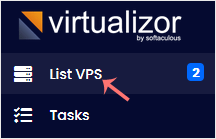
2. From the left side panel, click on List VPS.
ÂÂÂ
3. Hover your mouse on the appropriate VPS, and that line will be highlighted. Then click on the Manage icon in the highlighted line.

ÂÂÂ
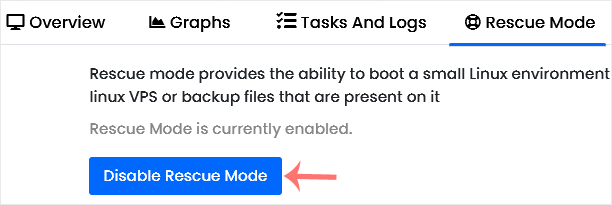
4. Click on Rescue Mode.

ÂÂÂ
5. Click Disable Rescue Mode.
ÂÂÂ
Your VPS will start in normal mode.
ÂÂÂ
If Virtualizor shows that no actions are allowed you can click on the Reload this page icon to refresh your page. All actions will become visible after disabling rescue mode.
ÂÂÂ
